

Explore other changes to pricing, shipping, notifications and the B2B Portal.
Last Updated: September 22, 2026
DISCLAIMER: The OCS reserves the right to make changes to its ordering processes at any time, without prior notice, by posting updates on the OCS Learn Site.
Pricing Changes
Plan ahead and submit with confidence
What This Means for You:
- Locked Pricing at Submission – Pricing is confirmed at the time of order submission.
- Price Updates on Tuesdays – There is no change to the weekly price update schedule or notice period.
- Split orders for split pricing – If a product you ordered has a price change, separate Sales Orders may be created to reflect the price in effect when each order was submitted. Items ordered before the price change will remain on one Sales Order. Items ordered after the price change will appear on a separate Sales Order. If those Sales Orders are scheduled for the same delivery day, they will be delivered together but priced differently on each individual Sales Order.
Example:
In this example, the retailer’s designated order cutoff day is Thursday. The retailer submits an order for this SKU before and after the price change. As a result, the Sales Order created before the price change will close, and any future orders for that product will appear on a new Sales Order.
- SKU 123456_3x0.5g___ (a Stocked product) has a price change on Tuesday, September 16.
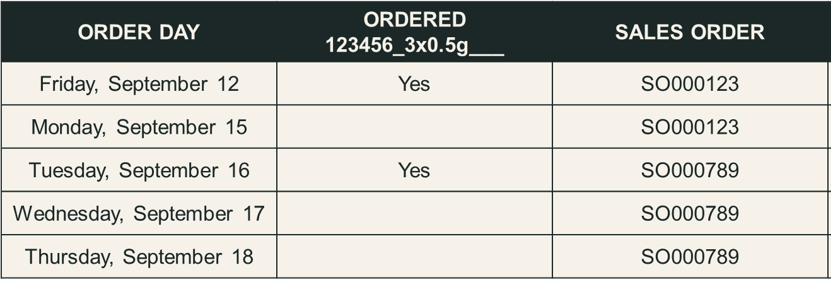
In rare circumstances, the OCS reserves the right to correct price errors at any time. This may trigger additional Sales Order confirmations beyond the typical scenarios above
Frequently Asked Questions
How does pricing work under the new changes to ordering?
Pricing is based on the date and time you submit your order, not when it is fulfilled.
When do price changes occur?
Price changes still occur every Tuesday.
What happens if I order the same SKU before and after a price change?
You will receive separate Sales Orders for that SKU, each with the pricing in effect at the time of submission. If those Sales Orders are scheduled for the same delivery day, they will be delivered together.
Can I cancel and resubmit an order if pricing changes?
No. Orders are final once submitted.
Shipping Fees
New Terminology. Same calculation.
Shipping fees remain the same:
- The greater of $200 or $0.08 per unit (excluding rolling papers, cones and filters).
What This Means for You:
- Estimated Shipping Fee – This updated label appears in the B2B Portal to reflect that shipping costs are estimated until fulfillment is complete.
- Multiple Ordering and Shipping Fees – If you place multiple orders:
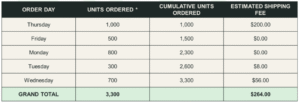
- Your first order is subject to the standard minimum shipping fee of $200, or $0.08 per unit if that amount exceeds the minimum.
- Later orders may show $0 in fees if your cumulative volume has not yet met the threshold.
- Later orders may show additional shipping fees at $0.08 per unit once the minimum threshold is reached.
- Your first order is subject to the standard minimum shipping fee of $200, or $0.08 per unit if that amount exceeds the minimum.
Example:
Retailer has a Wednesday designated order cutoff day and chooses to place multiple Stocked orders during the order cycle.
In this example, the retailer places orders only for Stocked products and does not include rolling papers, cones or filters, which are exempt from being counted towards units ordered.
Single Sales Order
Frequently Asked Questions
Is the shipping fee structure changing?
No. The calculation remains the same: $200 minimum per order or $0.08 per unit, whichever is greater. Flow-Through items continue to be shipped at no cost.
Why is the shipping fee now an “Estimated Shipping Fee”?
The B2B Portal will now display “Estimated Shipping Fee” because fees may change as additional orders are submitted or vary slightly after fulfillment.
How do fees work for multiple orders in the same week?
Your first Stocked order is subject to the standard $200 minimum fee or $0.08 per unit, whichever is greater. Subsequent Stocked orders in the same order cycle may show $0.00 if the cumulative Stocked volume has not exceeded the minimum fee threshold, or additional fees of $0.08 per unit.
Are Flow-Through items still free for shipping?
Yes, Flow-Through items continue to be shipped at no cost.
Back In Stock Notifications for Watchlist Items
Better alerts for timely ordering.
To support daily ordering, Watchlist alerts will be sent at the following times:
- 6:20 p.m. – Daily notification before the next order window.
- 7:00 a.m. – Morning alert for any overnight restocks.
- 6:20 p.m. (Weekly) – A weekly reminder ahead of your Stock Order Submission Cut-Off.
Frequently Asked Questions
How do back in stock notifications help me?
You are notified (as per the times in the table above) and can respond faster when products are restocked and available for order.
Will I get a notification if a product is restocked but sold out before the next alert?
Restocks can sell out quickly. So check the Portal often for high-demand SKUs.
Can I control which alerts I receive?
Yes. You can manage which products you track via the Watchlist in the B2B Portal, simply add products to your watchlist from the PLP (Product Listing Page).
Off-Cycle Orders (Emergency Orders)
No changes.
You may still be eligible for Off-Cycle Orders (Emergency Orders) as outlined in the Retailer Handbook for Stocked SKUs only. With daily ordering now available, the need for these orders is expected to be reduced.
While Flow-Through SKUs can be ordered throughout the week, all Flow-Through orders must be submitted by Monday at 12:30 p.m., unless otherwise communicated.
Order & Delivery Schedule Updates
We’ve made several enhancements to the Order & Delivery Schedule section in the B2B Portal to help you plan more effectively and navigate with ease. These updates focus on improving visibility, usability and clarity across three key areas in the Account Centre.
Detailed View Tab
You’ll notice the previous “Upcoming Order and Delivery Schedule” section is now called “Upcoming Dates”. This section reflects the current ordering window:
- Today’s Ordering Window – shown when you’re within the active order window
- Next Ordering Window – shown when you’re outside the active order window
You’ll also find newly added dates to support better planning:
- Next Stocked Cutoff Day
- Next Flow-Through Cutoff Day
- Next Stocked Delivery Day
- Next Flow-Through Delivery Day
The Month View under “Upcoming Dates This Month” has been refreshed to provide a snapshot of all relevant dates for the current month.
Calendar Dropdown
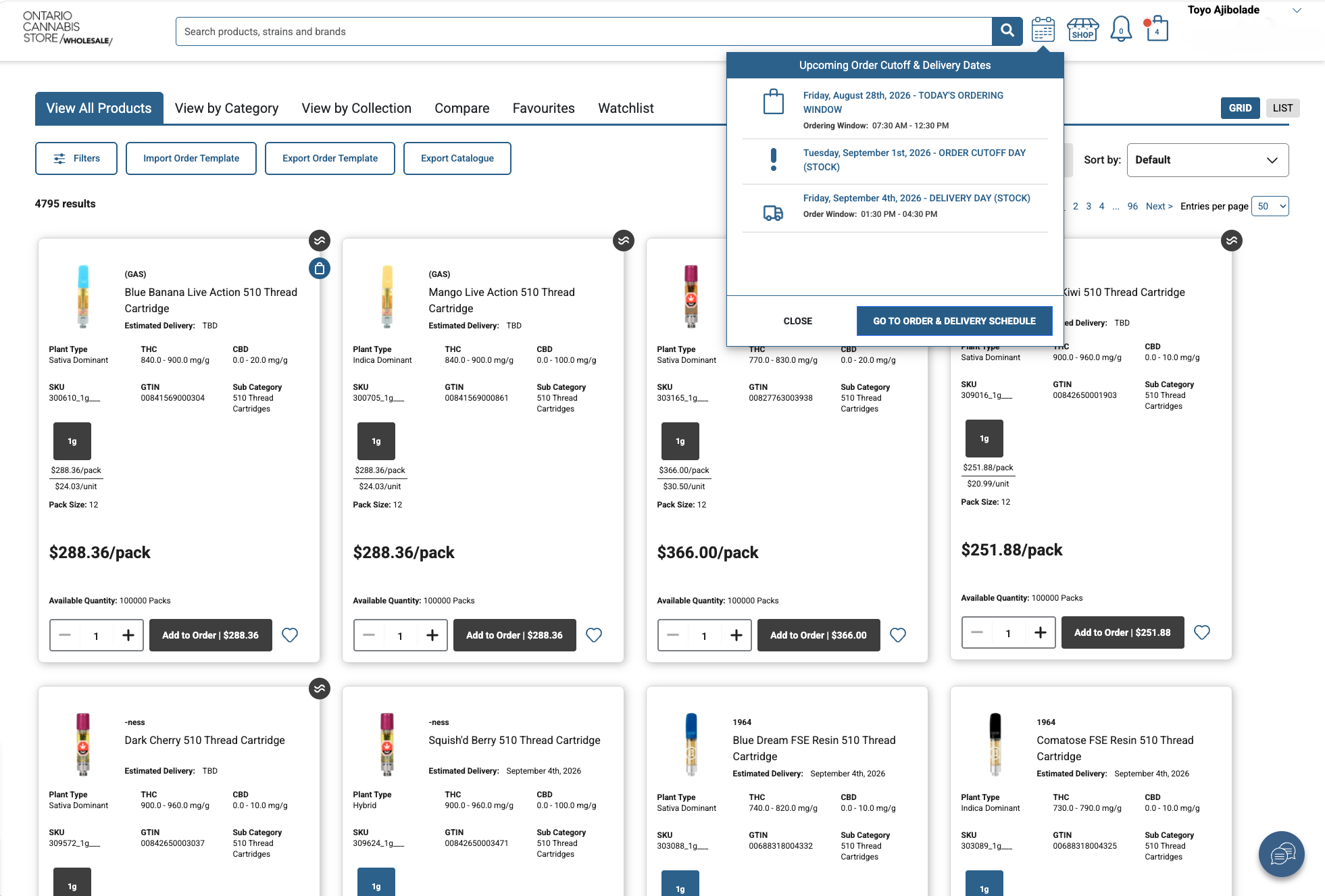
The calendar icon at the top of any B2B Portal page now opens an improved dropdown menu designed to make navigation faster and more intuitive.
What’s New:
- A new call-to-action button lets you jump directly to the Order & Delivery Schedule page.
- Updated icons make it easier to identify key dates:
- The exclamation mark (!) icon now represents Cutoff Day dates in the B2B Portal. For Flow-Through items, this icon includes a two-wave badge for easy visual distinction.
- The truck icon remains unchanged and continues to indicate delivery dates.
- A new legend item, “Ordering Unavailable,” highlights blackout dates—such as statutory holidays—when ordering is not possible.
These updates are designed to help you quickly find the information you need and stay on top of important ordering and delivery timelines.
Calendar View Tab
The Calendar View Tab in the Account Centre has been redesigned to give you more flexibility and control when reviewing your order and delivery schedule.
Key Features:
- A split calendar view separates Stocked Orders and Flow-Through Orders, with toggle options to view them individually or together.
- By default, the calendar opens in a combined view, showing all order types in one place.
- Clicking on a specific date opens a details panel with a breakdown of that day’s events. On mobile devices, this panel appears in a stacked format for easier viewing.
- You can toggle between:
- Combined view (Stocked + Flow-Through),
- Stocked orders only, and
- Flow-Through orders only.
Each view is configurable based on what you’re reviewing. If multiple events are scheduled on the same day, a Multiple Events icon will appear, showing the number of events (e.g., “3”). Clicking on that date will display a full breakdown of each event.
These enhancements make it easier to manage your schedule and stay informed about key ordering and delivery activities.
Frequently Asked Questions
Where can I see my upcoming ordering and delivery dates?
Navigate to the Order & Delivery Schedule in the Account Centre. The Upcoming Dates section shows Today’s Ordering Window when the order window is open, or Next Ordering Window when it is closed. You’ll also see the next Stocked and Flow-Through Cutoff Day labels, plus the next delivery days. You can also select the calendar icon from the top of any page to quickly navigate to your schedule.
What’s the difference between “Order Day” and “Cutoff Day”?
Cutoff Day is the label used in the B2B Portal. It refers to the final day to submit orders for the applicable order cycle by 12:30 p.m.
Can I view Stocked and Flow-Through orders separately?
Yes. In the redesigned Calendar View, you can toggle between combined view, Stocked only or Flow-Through only. Clicking a date shows a detailed breakdown of all events for that day.
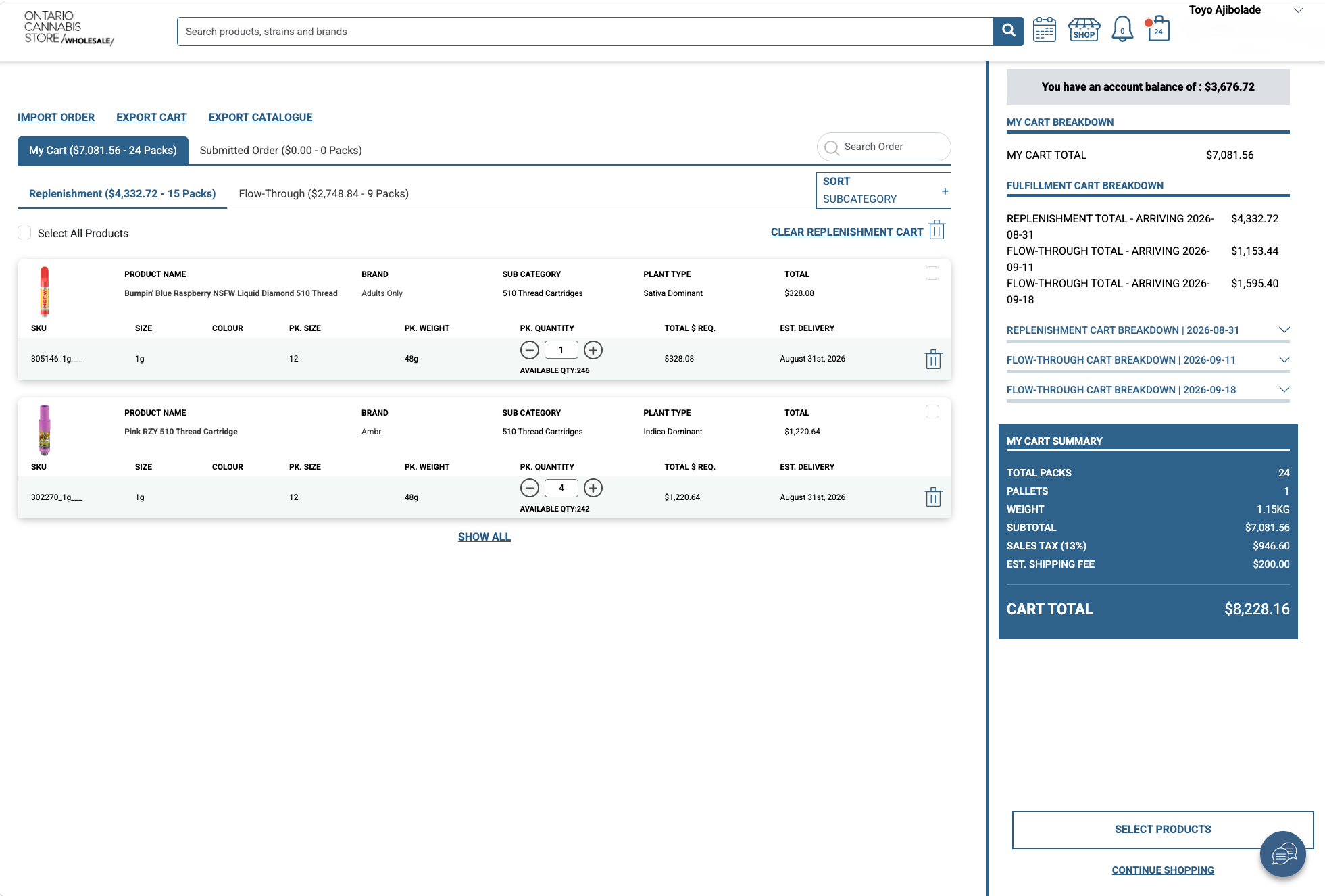
My Cart Summary
- Estimated shipping fee now shows the consolidated total for all Stocked Orders in the current order cycle.
- Hovering over the “!” icon shows a tooltip with an explanation.
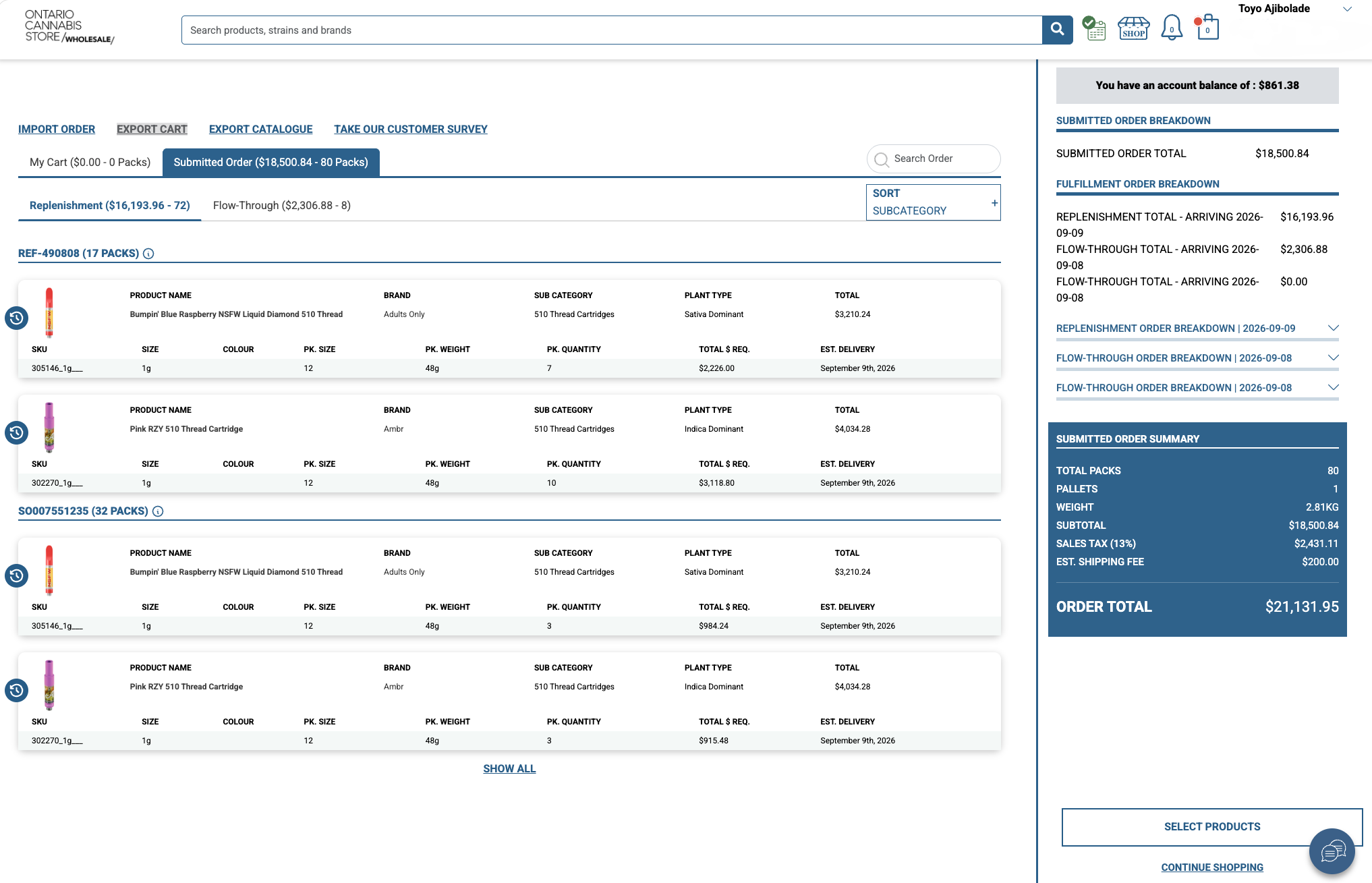
Submitted Orders in Cart
- Estimated shipping fee now shows the consolidated total for all Stocked Orders in the current order cycle.
- Sales Order numbers or Reference IDs are now displayed.
- Tooltips will describe Reference ID and Sales Order ID.
- Reference Order ID shows open orders that can be modified until submitted.
- Sales Orders are visually separated if:
- The Order Submission cutoff day has passed.
- Price change(s) occurred (Tuesdays).
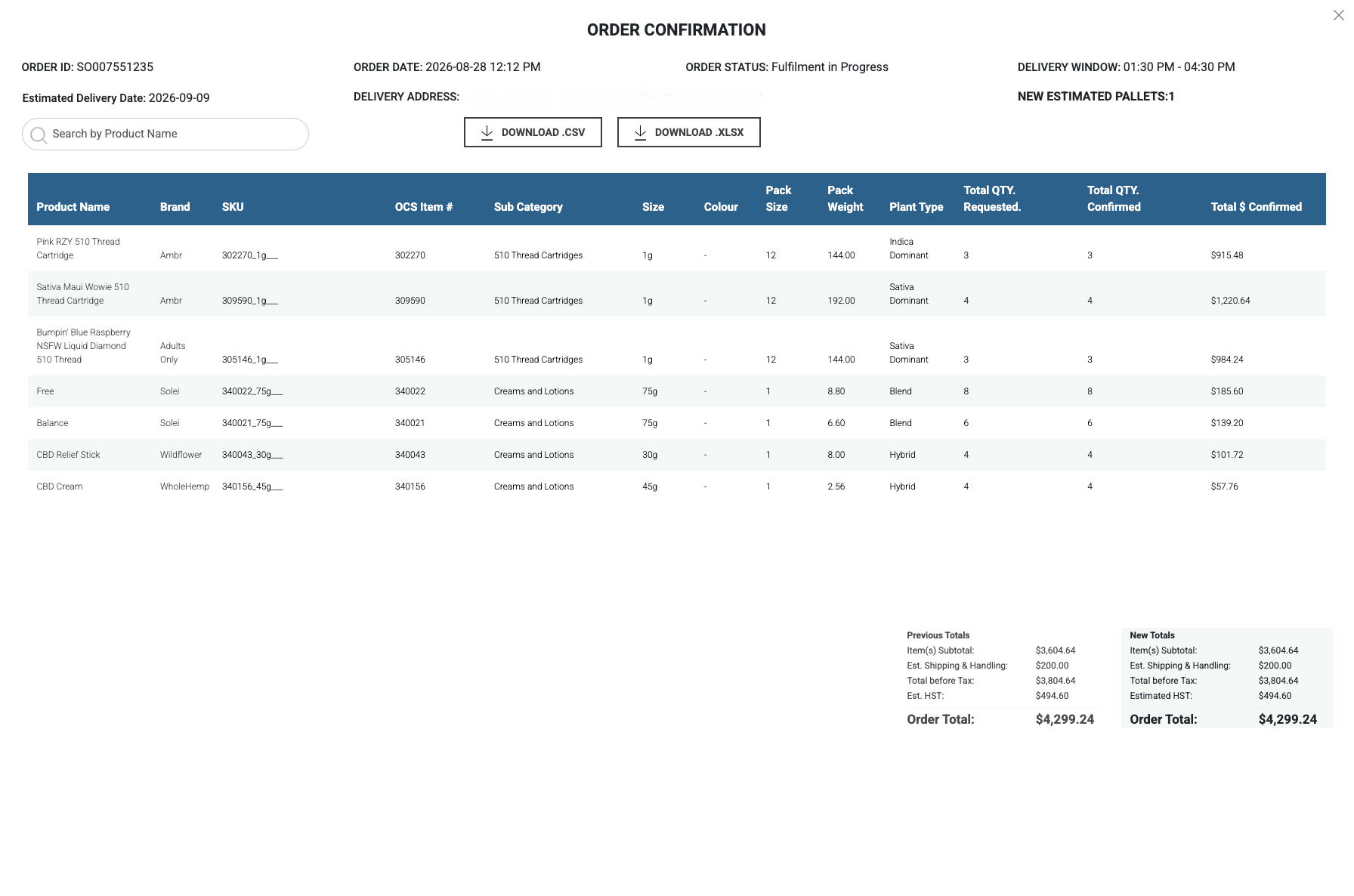
Order Details & Order Confirmation
Updates to the Order Details and Order Confirmation tabs:
- The Click to Buy tab has been removed.
- Quantity and Requested are now written in full, with no abbreviations.
- A new column, Total Quantity Confirmed, has been added after Total Quantity Requested.
- Total $ Confirmed now replaces Total $ REQ.
- Click to Buy Totals have been removed.
Product Listing Page (PLP)
- Export template is now available at all times.
- Product card quantities now visible at all times.
Frequently Asked Questions
Can I export templates outside of an order day?
Yes. Templates can be exported at any time.
Can I see product card quantities outside of order day?
Yes. Quantities are now visible at all times.