

Lorem ipsum dolor sit amet, consectetur adipiscing elit.
Last Updated: April 28, 2026
DISCLAIMER: The OCS reserves the right to make changes to its ordering processes at any time, without prior notice, by posting updates on the OCS Learn Site.
Order & Delivery Schedule Updates
We’ve made several enhancements to the Order & Delivery Schedule section in the B2B Portal to help you plan more effectively and navigate with ease. These updates focus on improving visibility, usability and clarity across three key areas in the Account Centre.
Detailed View Tab
You’ll notice a new “Upcoming Order and Delivery Schedule” is now called “Upcoming Dates”, and reflects your current ordering window:
- Today’s Ordering Window – shown when you’re within the active window
- Next Ordering Window – shown when you’re outside the current window
You’ll also find newly added dates to support better planning:
- Next Stocked order cutoff day
- Next Flow-Through cutoff order day
- Next Stocked order delivery day
- Next Flow-Through order delivery day
The Month View under “Upcoming Dates This Month” has been refreshed to provide a snapshot of all relevant dates for the current month.
To ensure consistency with Licensed Producers, Flow-Through terminology for delivery dates has been added throughout the B2B Portal.
- Tier 1 = Expedited delivery
- Tier 2 = Standard delivery
Additionally, the term “Order Day” has been updated to “Cutoff Day” throughout the Portal.
Calendar Dropdown
The calendar icon at the top of any B2B Portal page now opens an improved dropdown menu designed to make navigation faster and more intuitive.
What’s New:
- A new call-to-action button lets you jump directly to the Order & Delivery Schedule page.
- Updated icons make it easier to identify key dates:
-
- The exclamation mark (!) icon now represents order cutoff dates. For Flow-Through items, this icon includes a two-wave badge for easy visual distinction.
- The truck icon remains unchanged and continues to indicate delivery dates.
- A new legend item, “Ordering Unavailable,” highlights blackout dates—such as statutory holidays—when ordering is not possible.
These updates are designed to help you quickly find the information you need and stay on top of important ordering and delivery timelines.
Calendar View Tab
The Calendar View Tab in the Account Centre has been redesigned to give you more flexibility and control when reviewing your order and delivery schedule.
Key Features:
- A split calendar view separates Stocked Orders and Flow-Through Orders, with toggle options to view them individually or together.
- By default, the calendar opens in a combined view, showing all order types in one place.
- Clicking on a specific date opens a details panel with a breakdown of that day’s events. On mobile devices, this panel appears in a stacked format for easier viewing.
- You can toggle between:
- Combined view (Stocked + Flow-Through),
- Stocked orders only, and
- Flow-Through orders only.
Each view is configurable based on what you’re reviewing. If multiple events are scheduled on the same day, a Multiple Events icon will appear, showing the number of events (e.g., “3”). Clicking on that date will display a full breakdown of each event.
These enhancements make it easier to manage your schedule and stay informed about key ordering and delivery activities.
Order History
We’ve made updates to the Order History section in the B2B Portal to improve visibility, usability and planning. These changes help you better track your orders and understand how they’re fulfilled.
Sales Orders Tab
The default view is now the Sales Orders tab, with a toggle to switch between Sales Orders and the new Fulfillment Orders tab.
A new column, Fulfillment Order ID, has been added. You may see:
- TBD – Fulfillment ID not yet assigned.
- A Fulfillment Order ID – Click to view all related Sales Orders.
- NA – For orders invoiced before the updates.
Clicking a Fulfillment Order ID opens a snapshot of all Sales Orders included in that Fulfillment Order.
Fulfillment Orders Tab
This tab organizes Sales Orders by Estimated Delivery Date. All Sales Orders are visible here, even if the Fulfillment ID is still pending.
- Estimated Delivery Dates are shown even before the cutoff day passes
- Clicking a Fulfillment Order ID opens a snapshot of all Sales Orders included in that Fulfillment Order.
You may notice:
- Multiple Flow-Through orders separated by Delivery Tier.
- Two Replenishment Orders if a product was ordered before a price change (pricing is locked at submission).
For off-cycle (emergency) orders, the Estimated Delivery Date reflects the timing communicated during order setup.
Supporting Documents
Documents are shown at different levels:
- Order Confirmation – at the Sales Order level.
- Invoice & ASN – at the Fulfillment Order level.
The View ASN and View Invoice buttons appear only when those documents are available. If not yet generated, the buttons will not be visible, even if a Fulfillment Order is present.
Selecting View Invoice will show all Sales Orders included in that Fulfillment Order.
These updates make it easier to track your orders, understand delivery timelines and access supporting documents all in one place.
If you have questions or need support, please reach out through your usual contact channels.
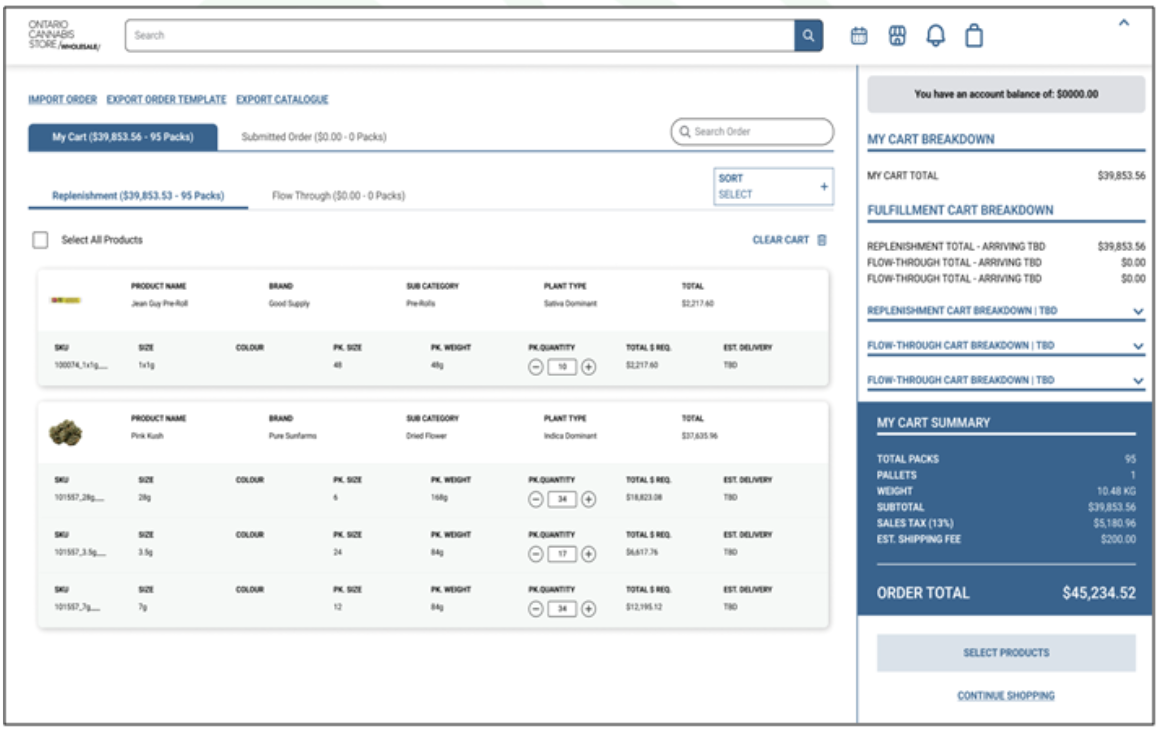
My Cart Summary
- Estimated shipping fee now shows the consolidated total for all Stocked Orders in the current period.
- Removed “Lottery” and “Click-to-Buy” terminology as all orders are now Click-to-Buy.
- Hovering over the ‘!’ icon shows a tool tip with explanation.
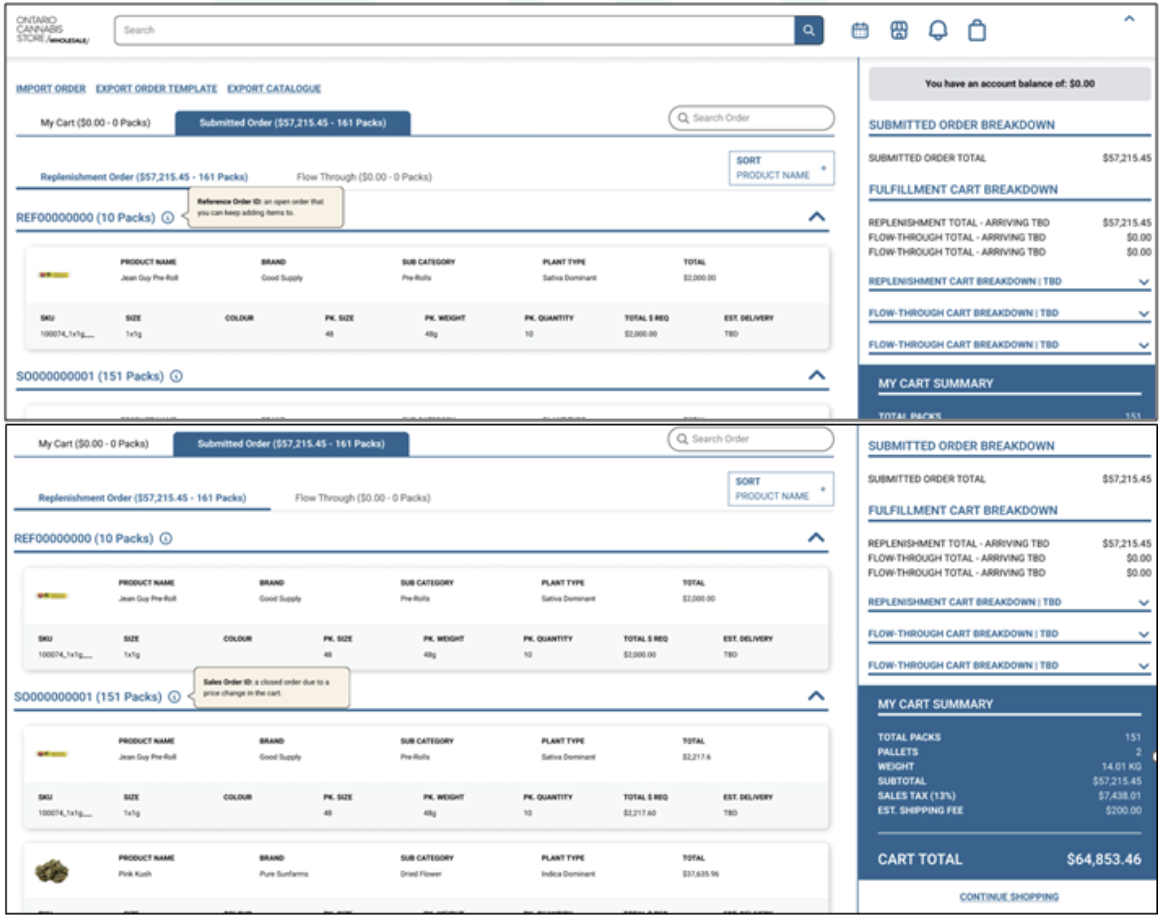
Submitted Orders In Cart
- Estimated shipping fee now shows the consolidated total for all Stocked Orders in the current period.
- Sales Order number or Reference ID are now displayed.
- Tool tips will describe Reference ID and Sales Order ID.
- Reference Order ID shows open orders that can be modified until submitted.
- Sales Orders are visually separated if:
- Order Day Cutoff has passed.
- Price change(s) occurred (Tuesdays).
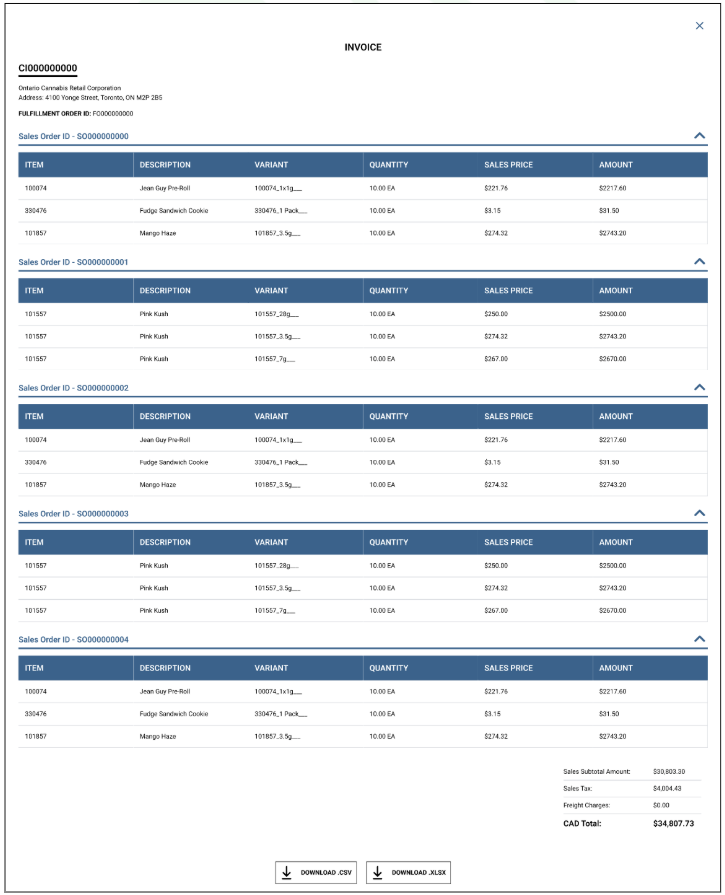
Invoice
- Invoice now includes Fulfillment Order ID.
- Orders are grouped by Sales Order.
- The downloaded template also now includes Fulfillment Order and Sales Order details.
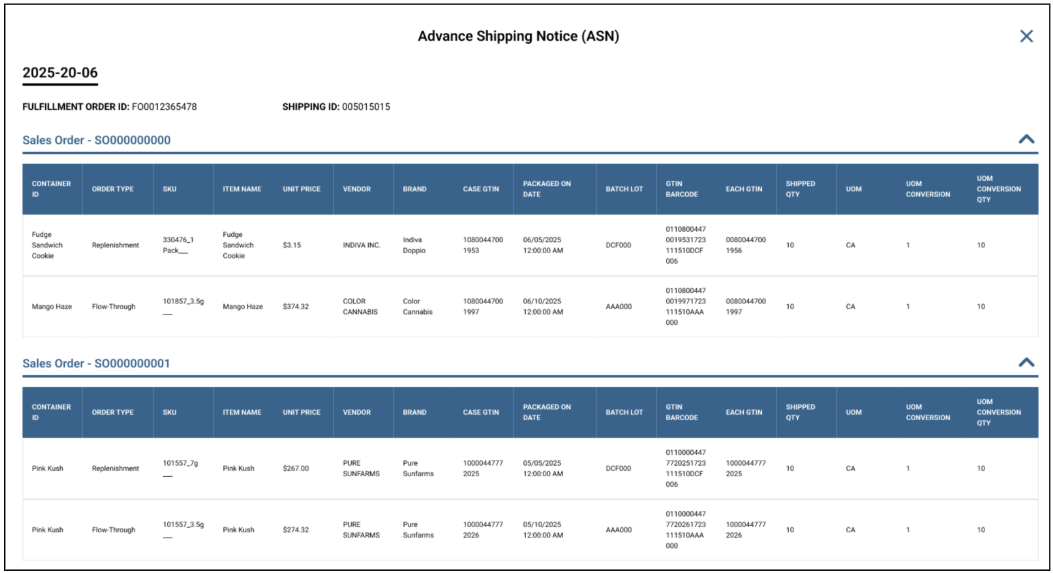
Advanced Shipping Notice (ASN)
- Terminology Update:
- Fulfillment Order ID has replaced Order ID at the top of the page.
- Multiple Sales Orders are now grouped under a single Fulfillment Order.
- New Columns Added:
- Container ID and Order Type are now the first two columns.
- Download Options:
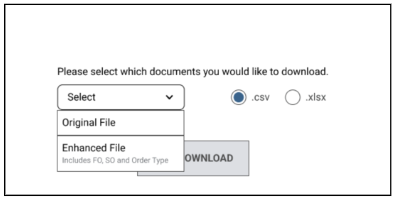
- Two versions of the ASN are now available for download:
- Original File
- Enhanced File (includes Fulfillment Order, Sales Order, and Order ID)
- Two versions of the ASN are now available for download:
Please Note: Some POS systems may not be able to upload the Enhanced File correctly. The Original File remains available for compatibility.
Claims
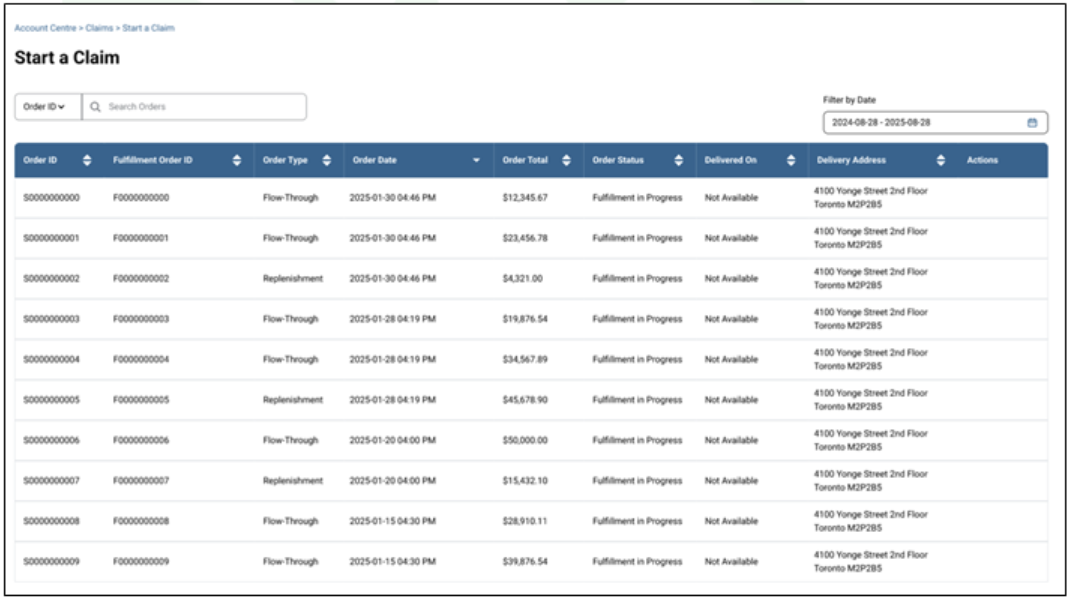
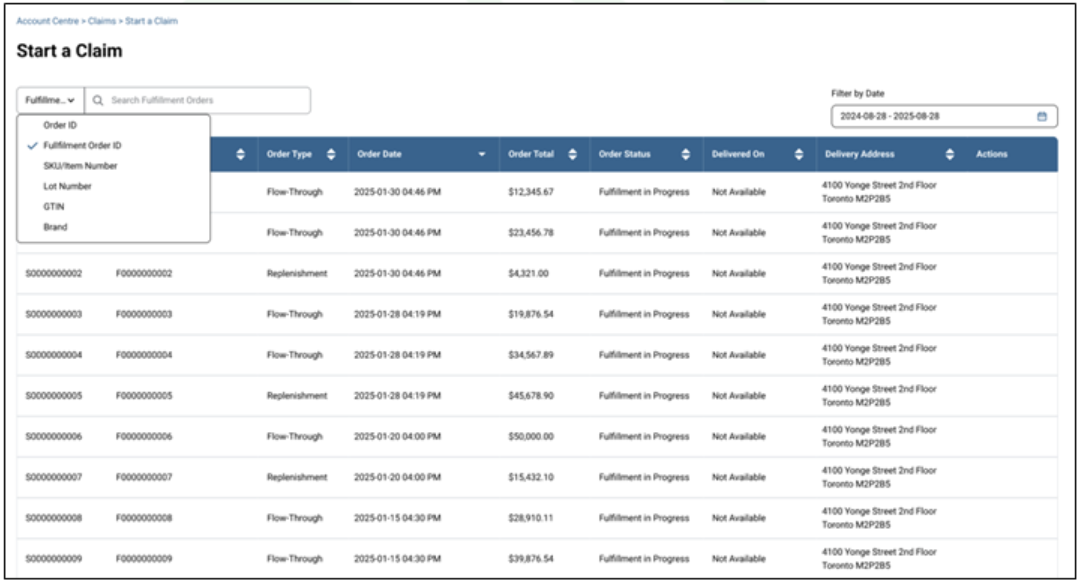
- The Fulfillment Order ID column has been added to the Start a Claim page.
- Column is now searchable and sortable by Fulfillment Order ID.
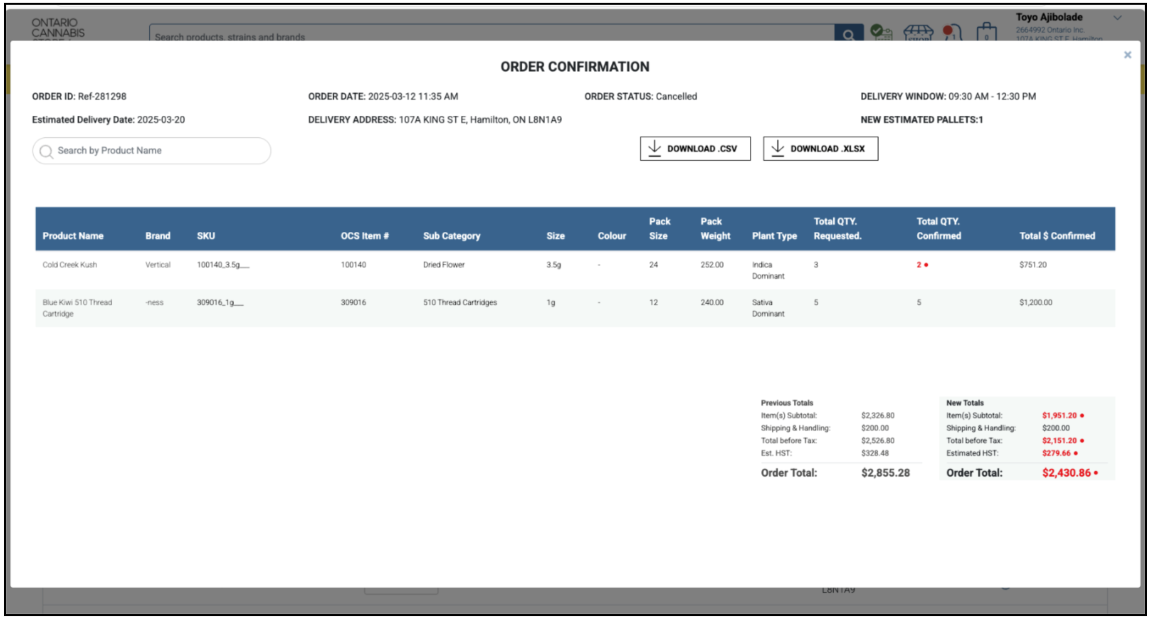
Order Details & Order Confirmation
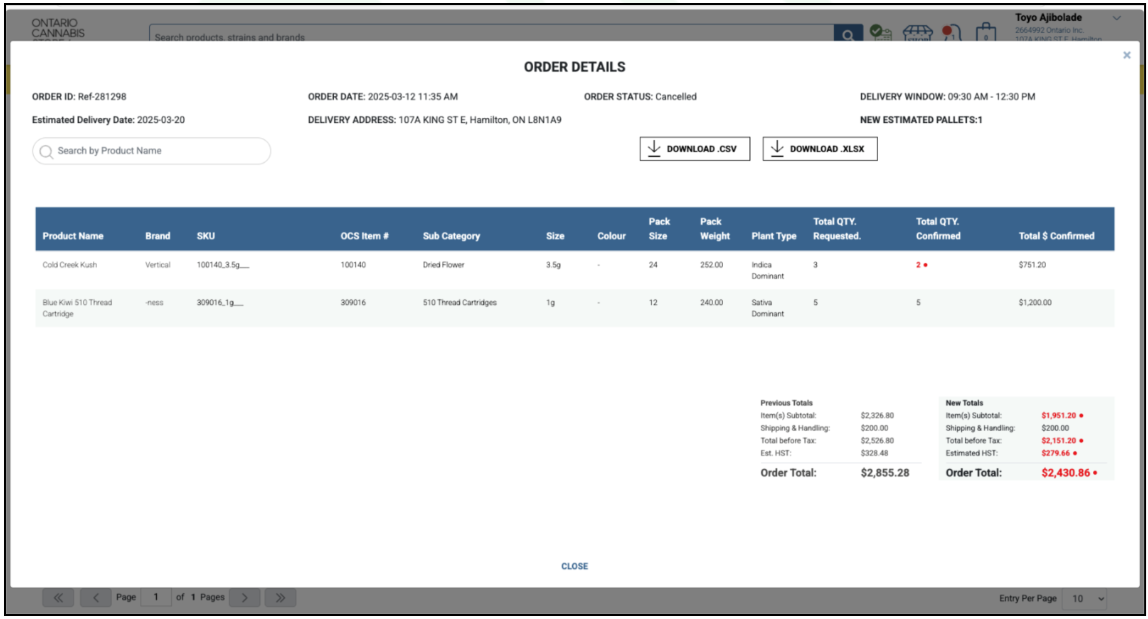
Updates to the Order Details and Order Confirmation tabs:
- The Click to Buy tab has been removed.
- Quantity and Requested are now written in full (no abbreviations).
- A new column, Total Quantity Confirmed, has been added after Total Quantity Requested.
- Total $ Confirmed now replaces Total $ REQ.
- Click to Buy Totals have been removed.
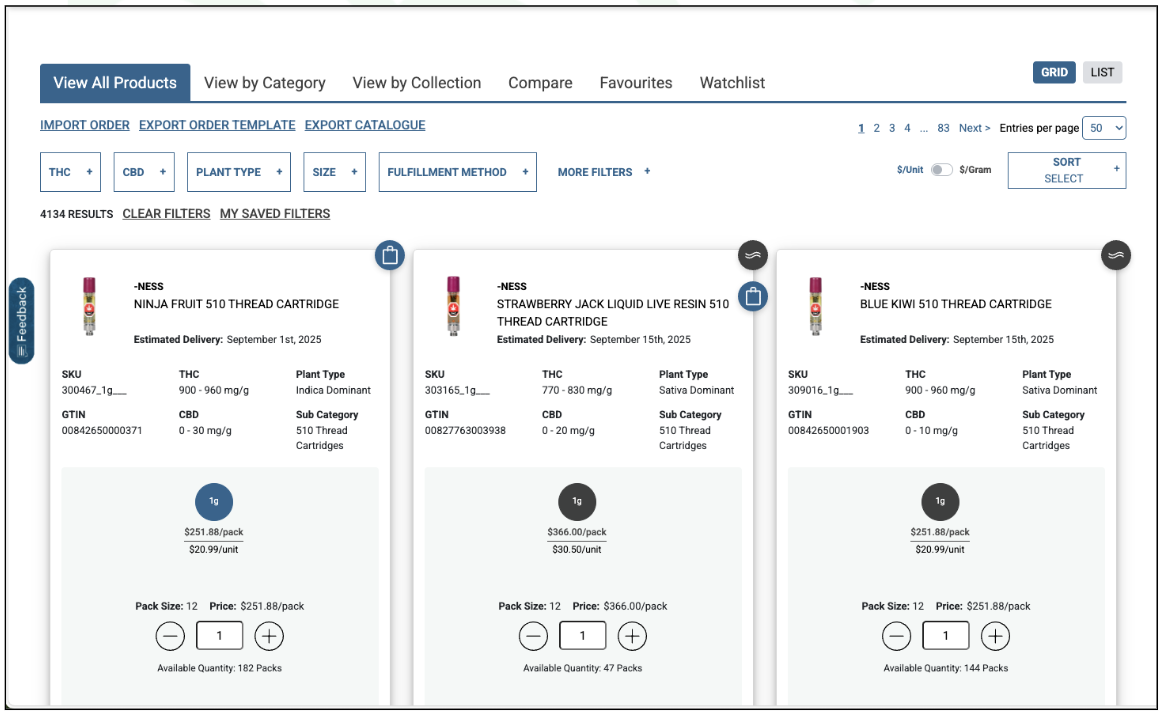
Product Listing Page (PLP)
- Export template is now available at all times.
- Product card quantities now visible at all times.
Frequently Asked Questions
What does “TBD” mean under Fulfillment Order ID?
TBD under Fulfillment Order ID means it hasn’t been assigned yet. Once available, you can click to view all related Sales Orders.
What’s the difference between the Original and Enhanced ASN files?
The Original File is compatible with all POS systems. The Enhanced File includes Fulfillment Order, Sales Order and Order ID, but may not be supported by all POS systems.
Where can I see my upcoming ordering and delivery dates?
Navigate to the Order & Delivery Schedule in the Account Centre. The new Upcoming Dates section shows either Today’s Ordering Window (if the window is open) or Next Ordering Window (if closed). You’ll also see the next Stocked and Flow-Through cutoff days, plus the next delivery days. You may also select the Calendar Icon from any page to navigate to your schedule quickly.
What’s the difference between “Order Day” and “Cutoff Day”?
The term Order Day has been updated to Cutoff Day to reflect your last opportunity to submit your order for an order cycle.
Can I view Stocked and Flow-Through orders separately?
Yes. In the redesigned Calendar View, you can toggle between combined view, Stocked only or Flow-Through only. Clicking a date shows a detailed breakdown of all events for that day.
What new information is included on invoices?
Invoices now include the Fulfillment Order ID, with Sales Orders grouped under it. Downloaded templates also include Fulfillment Order and Sales Order details.
What changed in the ASN (Advanced Shipping Notice)?
Updates include:
- “Fulfillment Order ID” replacing “Order ID” at the top
- New columns for Container ID and Order Type
- Two download options: Original File or Enhanced File (with Fulfillment Order, Sales Order, and Order ID)
Note: Some POS providers may not support the Enhanced File. The Original File remains available for compatibility.
Can I export product templates outside of an order day?
Yes. Export templates are now available at all times.
Can I see product card quantities outside of order day?
Yes. Quantities are now visible at all times.